FlauntR really flaunts awesome features.

Picnik was our favorite so far. We loved its simplicity and its speed. It is hard to imagine how the entire product was coded using some brilliant CSS and Javascript goodness. We thought that it was the end of it. Then Adobe launched the Photoshop online suite programmed mainly in Flash. But we know that an online image editing tool has its limitations and hence it usually doesn’t give the feel and the effect which Photoshop can provide. But FlauntR could well be an exception. FlauntR divides it’s image editing task into 6 primary segments - stylR, textR, editR, mobilR, profilR and picasR.  flauntr1

    StylR gives a huge number of one-click effects, overlays and a new look to your photos.

    ProfilR, as the name suggests, lets you easily create a profile photo which you can add in various social network profiles. EditR does the image editing and tweaking for you and has all the necessary features like cropping, red eye removal and various effects ranging from night-vision to pencil sketch effect. TextR let’s you decorate your images with different fonts and background colors. MobilR is an innovative feature which allows you to create mobile wallpapers from your images and supports a huge number of cellphone models.  PicasR uses different paintings to apply some incredible effects to your photos.

    Simply neat !

Calgoo Goes Free, Syncs Desktop Calendars with Google Calendar

Online and desktop calendar-syncing application Calgoo Connect—along with all of the other calendar tools available from Calgoo—are now free. calgoo Calgoo Connect syncs Outlook on Windows or iCal on OS X with popular online calendars, namely Google Calendar and 30 Boxes.  

All Calgoo products are now freeware, Windows and Mac OS X only.

Calgoo [via WebWorkerDaily]

Gmail Offers Always-Secure Option

Gmail just made it easier for the coffee shop set and security-conscious types to always connect through https://. Gmail Mobile app users should note this glitch before doing so. [via]

gmail_https

Technorati Tags: ,

40+ Extremely Beautiful Fonts


Noupe.com has a great round-up of hand-picked fonts from the pages of deviantART. Well worth browsing!

font70

40 Extremely Beautiful FONTS Hand-picked from deviantART

Technorati Tags: , , , ,

iGoogle integrates most Google services.

igooglelogo Its always a pleasure to see all heavily used services are integrated and can be invoked from one place. iGoogle has just integrated GMail, GChat and Google Reader into one.

To preview the new iGoogle simply head to the iGoogle homepage and paste the following in the address bar:

javascript:_dlsetp('v2=1');

To revert back to the previous iGoogle simply paste the following:

javascript:_dlsetp('v2=0');

Facebook redesign.

Five months later and it looks like Facebook is ready to release its new profile redesign. Tomorrow evening the redesign will be open to the public.
Glimpses of this new design can be seen at http://www.new.facebook.com.

So what's new for users of Facebook:

  • New Menu Bar
  • Mini-Feed and Wall are now under the wall tab
  • A new "Bio" box
  • Complete rearrangement of tabs for your wall, info, photos, and apps
  • Facebook Apps are now found in the "Boxes" tab
  • Users can add extra tabs
  • Use your webcam to take a photo or record a video to add to your collection or post on the Wall of your friends
  • Technorati Tags: ,

Hacking the Technical Interview

Job interview master Vj Vijai describes how make the best impression at a technical interview using people skills (versus technical skills). His talk, which happened at O'Reilly's awesome Ignite event, is informative, funny, and short. Vijai also has a web site outlining the principles, linked below. The next Ignite will happen in NYC on 7/29

Hacking the Technical Interview

Technorati Tags: ,

Use Winamp skins with VLC Player

We all agree that when it comes to looks, VLC Media Player is ugly Betty. But there is a way to revamp the looks of your VLC player by using Winamp Classic Skins. Yes, VLC can use Winamp Classic skins as its interface. That means the thousands of styles available at Winamp Classic's official site and elsewhere can be put to good use on modern systems.

To change VLC's skin, load the program, hit the "Settings" menu, select "Switch interface" and then "Skins 2." Once the modern-looking skin loads, you can right-click on blank space, choose "Select skin" and see how the player works and acts with a Winamp Classic skin. If you want to keep the skin, head for the Interface->Main interfaces->Skins dialog in VLC's preferences and make sure "Advanced options" is checked.

Technorati Tags: , ,

nCleaner – lets clean your machine.

nCleaner is a free Windows system cleaning application. This app will let you clean your system, applications, free more disk space, boost your system’s speed and get more stability and privacy protection. image

nCleaner contains the nkProds patented system and application cleaner chock full of over 90 cleaning items. That is enough to keep any geek busy for an evening. 

From the initial glance, its quite obvious to see that this nifty little app. packs great power. A serious competitor to CCleaner.

Technorati Tags: , ,

How to use Winamp to manage your iPod

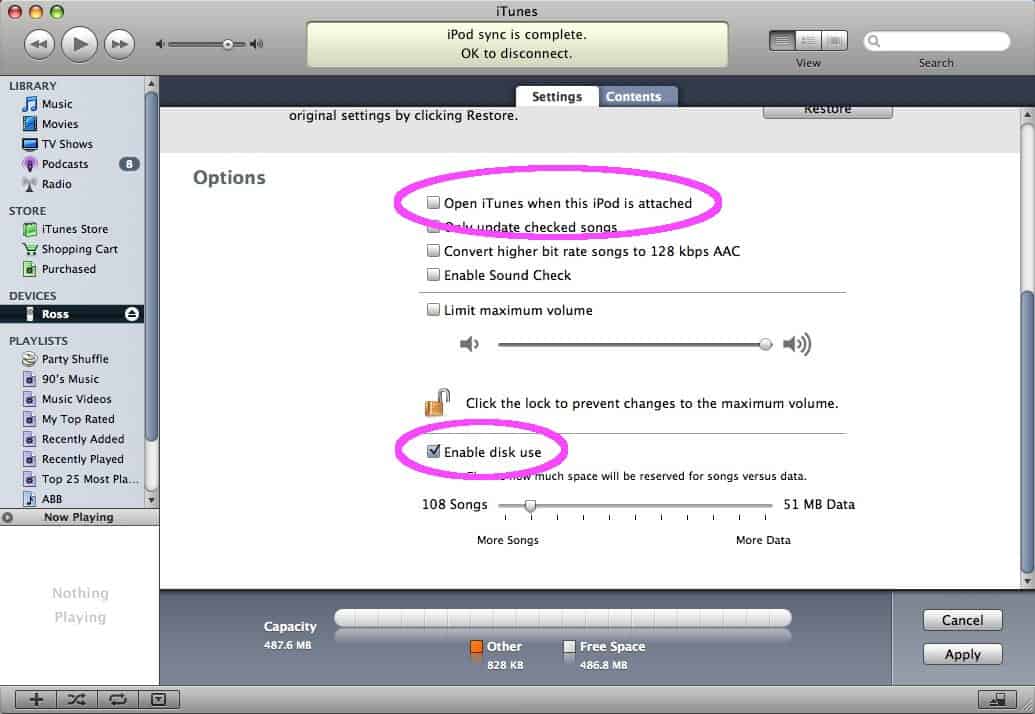
  1. First, make sure to enable disk use on your iPod by connecting it and opening iTunes (if it doesn’t auto-launch). Select your iPod and then click the Settings tab. Scroll down to the Options section and remove the check from the box labeled Open iTunes when this iPod is attached. Then place a check in the Enable disk use box (if it isn’t checked already). Click Apply.
  2. itunes settings

  3. Exit out of iTunes, and confirm that your iPod has now mounted itself as a drive.
  4. ipod drive

  5. Download and install Winamp if you haven’t yet. If you opt to create a custom installation, make sure to leave the iPod support selection in Portable Media Player Support (which is a part of the Winamp Library) checked.
  6. using winamp and your ipod

  7. Launch Winamp and if the Media Library window doesn’t appear, select View and then Media Library.
  8. using winamp and your ipod

  9. In the left column of the Media Library window, select your iPod from the Portables list. Any files currently on your iPod will be displayed.
  10. using winamp and your ipod

  11. To add music to your iPod, open the Playlist window, add some songs to it and then right-click those songs. From the pop-up menu select Send to: and then choose your iPod.
  12. using winamp and your ipod

  13. You’ll see a percentage status indicator as the files are sent to your iPod.
  14. using winamp and your ipod

  15. The files listed on your iPod may not refresh on their own. Just click Portables
  16. using winamp and your ipod

  17. … and then click your iPod again. All of the files you just sent to your iPod will now be listed.
  18. using winamp and your ipod

  19. You can eject your iPod right from within Winamp by clicking the Eject button in the bottom right corner of the Media Library window.
Technorati Tags: , ,