So here you go, over 80 Gmail tools and tips, including Firefox extensions, Greasemonkey scripts, Desktop programs, Web applications and all-purpose ‘HowTo’ guides.
Firefox EXTENSIONS
Gmail Manager - manage multiple Gmail accounts, receive new mail notifications, view unread messages right from your browser statusbar. “…The Gmail Manager Firefox add-on obviates the need to keep your Gmail open in a tab all the time by displaying your email info in a statusbar pop-up…” [via LifeHacker]
GmailThis - excellent browser bookmarklet that lets you quickly forward highlighted text on any webpage via Gmail.
Better Gmail - integrates features of 10 Greasemonkey scripts into one firefox addon. These include: Google Reader integration, Mac-like skin, GCal integration, Fixed font and more.
GmailSkinz - powerful firefox addon with lots of cool features: change Inbox color , Add Google IG modules, insert images from Picasa albums, insert smileys, make navigation menu horizontal, hide unnecessary page elements, and more. (Note: some users reported having problems with this addon).
CustomizeGoogle - removes ads, switches you from http to https, hides the spam counter, quick contacts box, invite box and forces fixed font
Gspace - multi-platform firefox addon that turns your Gmail account into powerful online storage tool.
Gmail Search - search your Gmail account directly from the firefox search bar.
GcalQuickTab - toggle between Gmail and Google Calendar with keyboard shortcuts.
GTDInbox - turns your account into flexible and feature-loaded ToDo-management service (GTD = Getting Things Done)
DragDropUpload - this handy extension lets you quickly attach one or more files to your emails by dragging them over the “Attach a file” link.
Google Toolbar - official Google toolbar featuring one-click Gmail messages search.
FireGPG - integrates contextual menu with some useful functions: encrypt, decrypt, sign, etc. Read more on how to use it here.
GreaseMonkey SCRIPTS
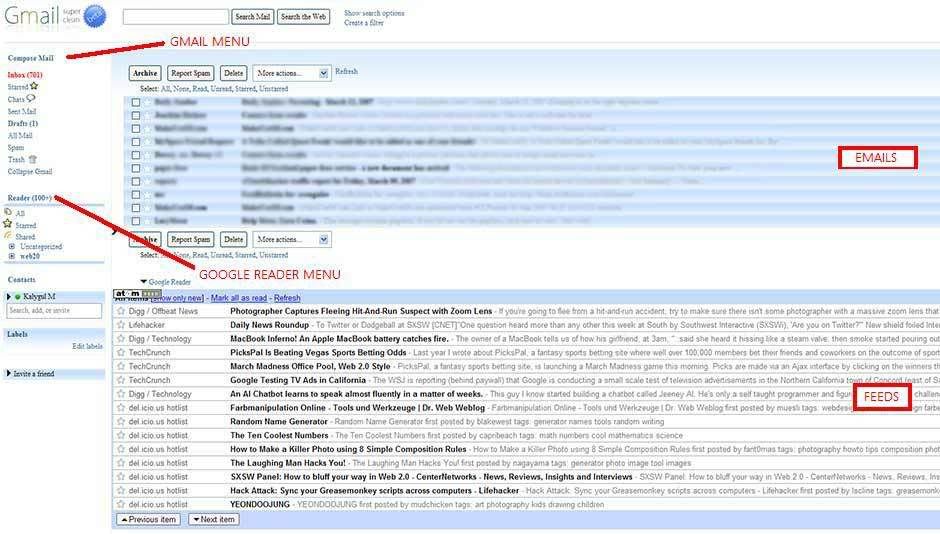
Gmail Super Clean - clean and distraction-free Gmail. Looks great, check it out here
Gmail Spam-count Hide - hides spam count link.
Google Reader Folders - adds a little box that lists the folders on Google Reader along with the number of unread items in each one.
Google Reader Integration - complete integration of GReader into Gmail. Excellent! (view). Jump to Google Reader Tools and Tips.
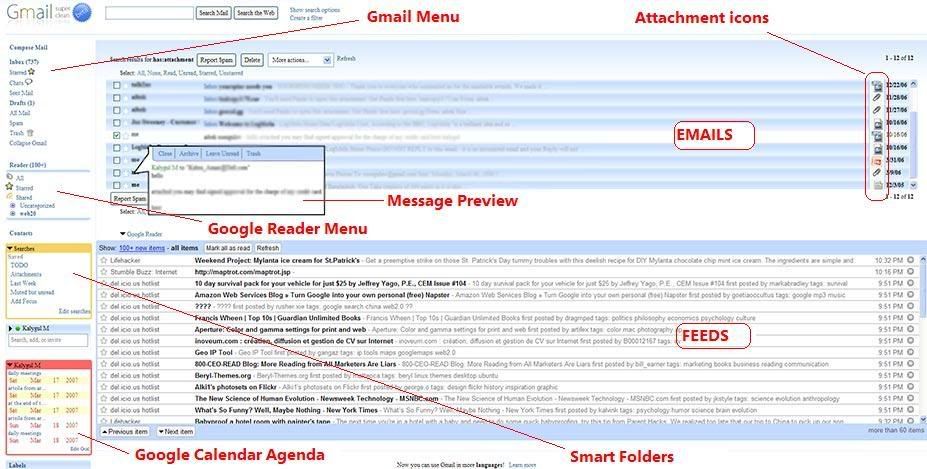
Google Calendar Integration - integrates GCal agenda into Gmail (view). Jump to Google Calendar Tools and Tips.
Conversation Preview - lets you quickly preview message contents right from the main inbox window (view).
Saved Searches - create ’saved searches’ (aka smart folders) and display them in the separate box in the navigation menu. Clicking on a search executes the saved query (view).
Folders4Gmail - allows you to create nested labels (i.e. labels and sub-labels) [via LifeHacker].
Gmail Date Search - adds a ‘Search by Date’ button to Gmail’s search form.
Label Colors - color menu labels to make them stand out better (view).
GMail Attachment Icons - adds attachment icons to emails, letting you see what kind of attachment an email has (HTML ,JPG, PDF….). Note: ‘Attachment icons’ isn’t a standard Greasemonkey script, it’s an addon for a similar Firefox extension known as Stylish. However it should work with Geasemonkey as well.
GmailTo - forces all ‘mailto’ links to open in GMail.
Fixed Font Toggle - adds a font toggle button so that messages can be viewed in a fixed-width font. Read more …
Gmail Macros - adds extra keyboard shortcuts to Gmail (i.e. “t” for move to trash, “r” for mark as read, “p” for mark as read and add to archive…etc). Read more…
Gmail Encrypt - encrypts your messages to prevent unwanted people from reading it. Just in case someone intercepts it while it’s on the way.
SSLGoogle - forces Gmail, Google Docs and GCale pages and their intra-links to open via secure connection (HTTPS).
Signature Float - moves your email signature to the top of the message rather than the bottom.
Attachment reminder - reminds you to attach a file to your Gmail, based on whether you have the word attach (ed, ment, etc) in the body.
Desktop Programs and Web Apps
GmailDrive (Win) - adds a new virtual drive (’Gmail Drive’) to ‘My Computer‘ folder. Drag’n drop files on top it to store them in your Gmail account.
gDisk (Mac) - Mac alternative for the above mentioned GmailDrive.
Gmail ToDo - handy desktop application that allows you to quickly add and save todo’s in a ‘ToDo’ label in your Gmail account.
FlipMail - free service for forwarding some/all of your emails to your mobile (US Only).
Gmail Loader - cross-platform (Win, Mac, Linux) tool to help you load all your old message archives from other email accounts into Gmail. [via LifeHacker].
Icon Generator - minimize spam exposure by getting an image for your email address and safely publish it wherever needed.
Blogsigs - lets you auto-include the title of your latest blog post in your email signature. Works with Gmail.
GMail Mobile - access Gmail from your mobile.
Google Talk - Google’s IM service which is fully integrable with GMail.
You’ve Got Gmail - Gmail plugin for Trillian (IM client)
Unbl0ck - web-based proxy for accessing Gmail from places where it’s blocked (work, school,…)
iPhoto2Gmail (Mac) - allows you to instantly email images from within iPhoto. Send either original or optimized (resized) image versions.
MailPlane - “…A full fledged mail client for Google Mail and Mac OS X “. Mail client combining best of Gmail with Mac’s simplicity anduser interface. It’s still in beta though, but you can request invite from here.
GmailFS - mountable Linux filesystem which uses Gmail as its storage medium
GMail Notifiers
- for Windows: GMail Notifier (official), GTray, Notifier2
- for Mac: GMail Notifier (official), GCount, Gmail+Growl 2.0
- for Linux: KCheckGmail
- for Firefox: E-Mail Notifier Toolbar, Gmail Notifier
GMail HowTo’s (over 20 all purpose HowTo guides)
HowTo: Build advanced Gmail filters and persistent searches.
HowTo: Import your archived emails into Gmail.
HowTo: Access Gmail account of someone who dies.
HowTo: Force Gmail notifier to use SSL (instead of HTTP).
HowTo: Import contacts from Hotmail to Gmail.
HowTo: Redownload Gmail messages into outlook.
HowTo: Backup your Gmail messages using Google Groups.
HowTo: Create Google Calendar events from Gmai.
HowTo: Set Gmail as default mail client in Ubuntu (without any additional software).
HowTo: Sync. Google Calendar and Gmail contacts to your desktop.
HowTo: Use rich HTML email signatures straight from Gmail (req. Better Gmail extension).
HowTo: Manage all your email account with Gmail. (Excellent guide for folks with several emails.)
HowTo: Back up Gmail with Fetchmail (Windows).
HowTo: Configure and access Gmail on Mozilla Thunderbird.
HowTo: Use Gmail over IMAP and tag your mail, too.
HowTo: Sync. Micr. Outlook, GCal, Gmail, iPod, and mobile phone.
HowTo: Encrypt and sign Gmail messages using FireGPG extension (see above).
HowTo: Work with Gmail Attachments like a PRO.
HowTo: Attach and send blocked file types, i.e. ‘*.exe’.
HowTo: Find that ’someone’ who gives away your email address to spammers.
HowTo: Gmail on Home Linux Box using Postfix and Fetchmail.
Gmail Shortcuts
- Secret keyboard shortcut for deleting messages [Amit's Amazing : labnol.blogspot.com]
- Shortcuts for Special Gmail Labels [googlesystem.blogspot.com] - for ultra quick navigation
- Gmail Shortcut List: handy, printable list of keyboard shortcuts for the Gmail [comp.nus.edu.sg]
Tips
- Three solid Gmail productivity tips [mattcutts.com]
- What to do if your Gmail is nearly full [bnura.blogspot.com]
- Jim’sTips: huge collection of basic gmail tips [g04.com]
Technorati Tags:
GMail,
Tips
 Trouble grabbing your mail this morning? Google says Gmail's web interface is unavailable to an uncannily familiar "small subset of users." They officially recommend accessing Gmail through an IMAP mail client, among other ways to. Google's Apps Status Dashboard states that an update will be issued by 8:29 Pacific time with more details, and reminds us that Gmail can still be accessed by IMAP clients, as it was the last time this happened. Best option is to enable IMAP to access Gmail during outage - Google's step-by-step instructions.